How to run a live poll or Q&A
ShuffleTurn turns the phones in a room into a way to answer, vote and ask. You show a question, people respond from their seats, and the answers appear live on a big screen. This page walks through both ways to use it, with what you see and what your audience sees.
- Nothing to installYour audience joins in a browser by scanning a QR code or typing a code.
- No account to startHosts can create a session as a guest. Sign in if you want to host from any device later.
- You control the paceQuestions open and results appear only when you choose.
Which one do I need?
Live poll
You ask, they answer. Use it for a quick vote, an icebreaker, a quiz with a leaderboard, a rating, an open question or a word cloud.
Live Q&A
They ask, you answer. Use it for a town hall, a lecture, a webinar or an AMA. People upvote what they want answered, and you can review questions before the room sees them.
Run a live poll in four steps
About two minutes from start to your first answers.
Name it and add a question
Give the session a title. People see it when they join. You can also start from a template such as an icebreaker, a sprint retro or a five question quiz. Choosing Anonymous means nobody has to type a name.
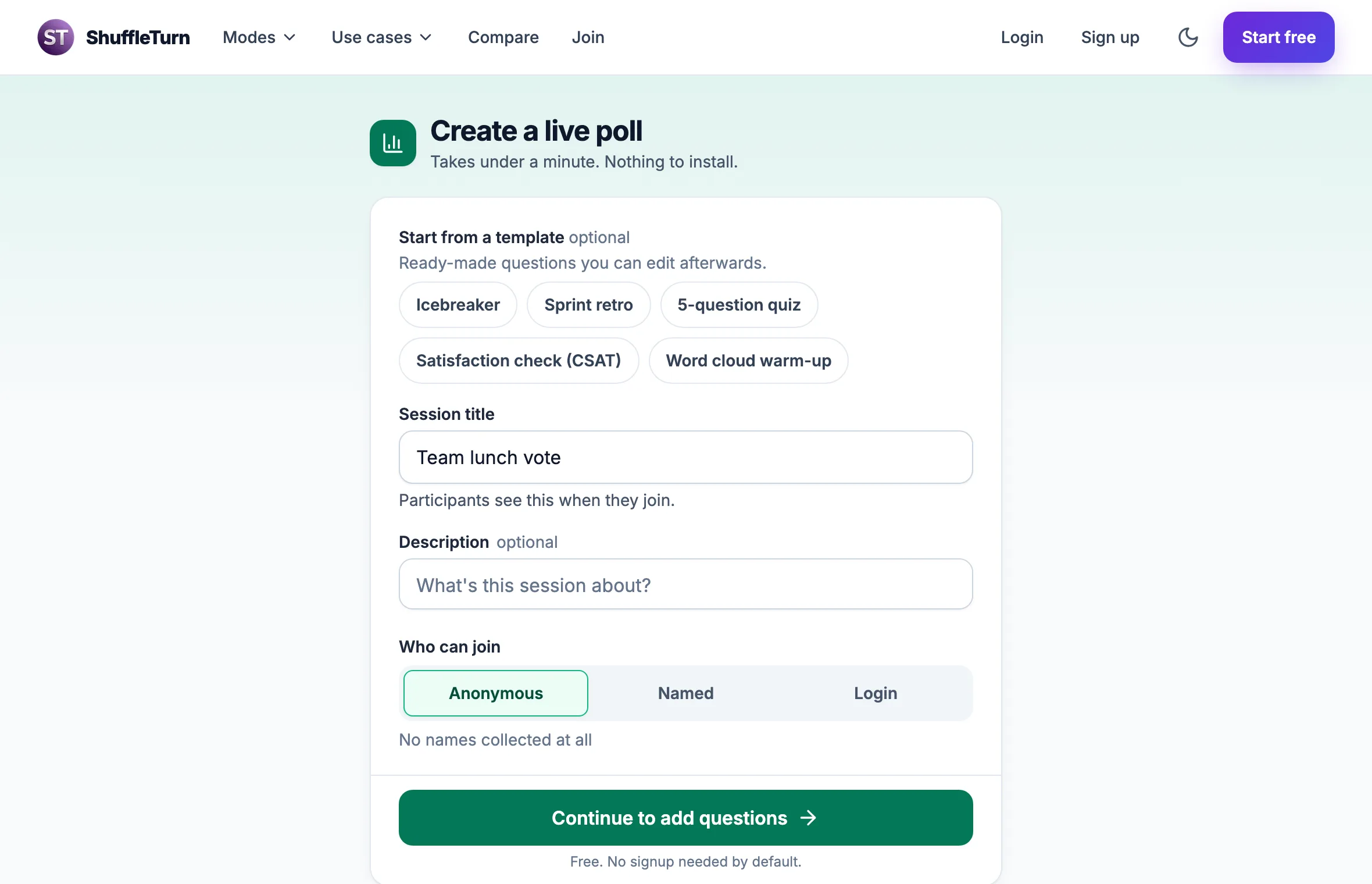
The create page. Pick a template or type a title, then continue. Then add a question. One question is enough to start, and you can add more later with Edit questions.
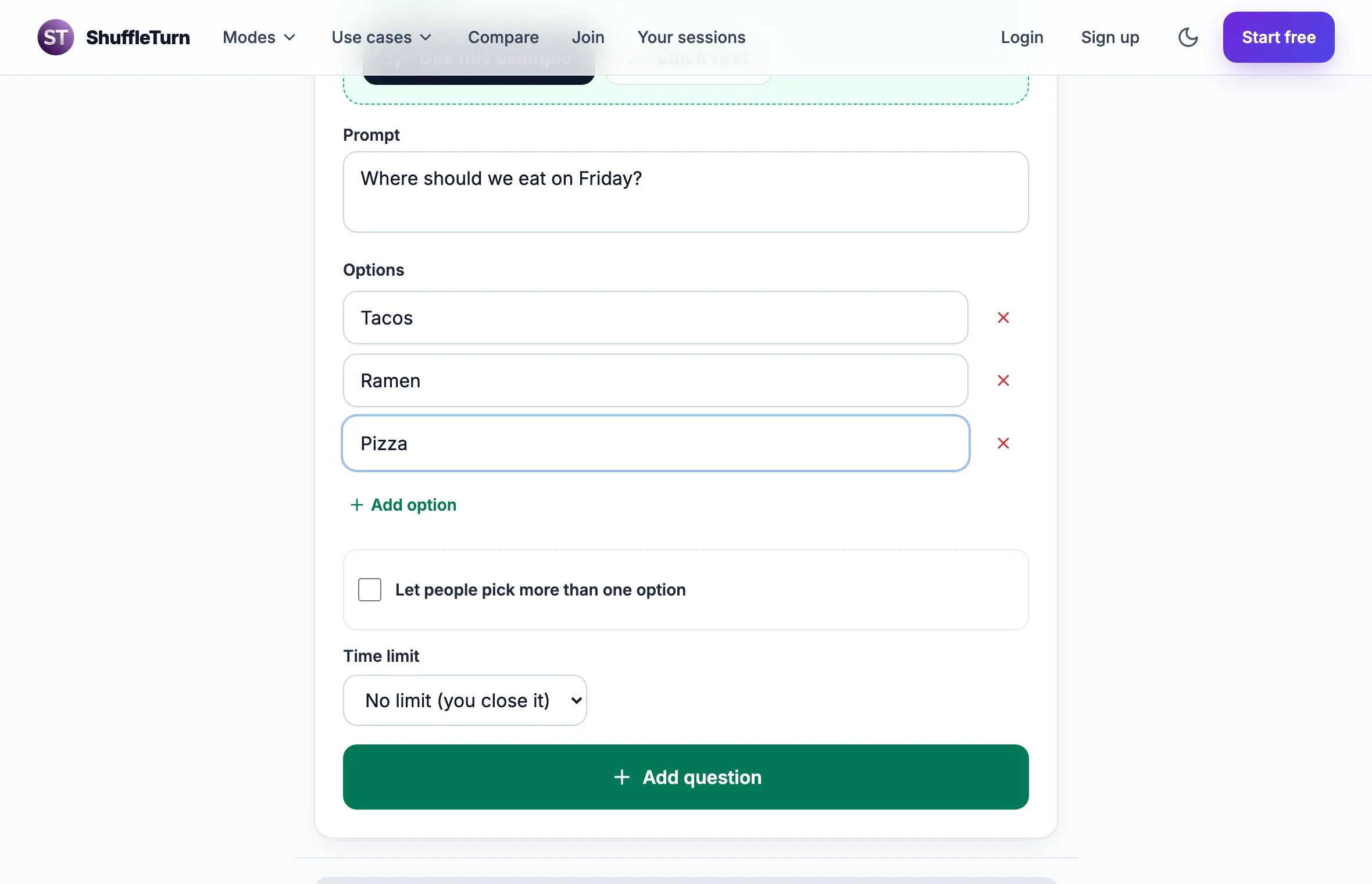
Choose a question type, write the prompt and add the answers. Get people in
The console opens with a large QR code, the join code and a Copy link button. Put the QR on a screen, or paste the link in your chat. People can also type the code at shuffleturn.com/join.
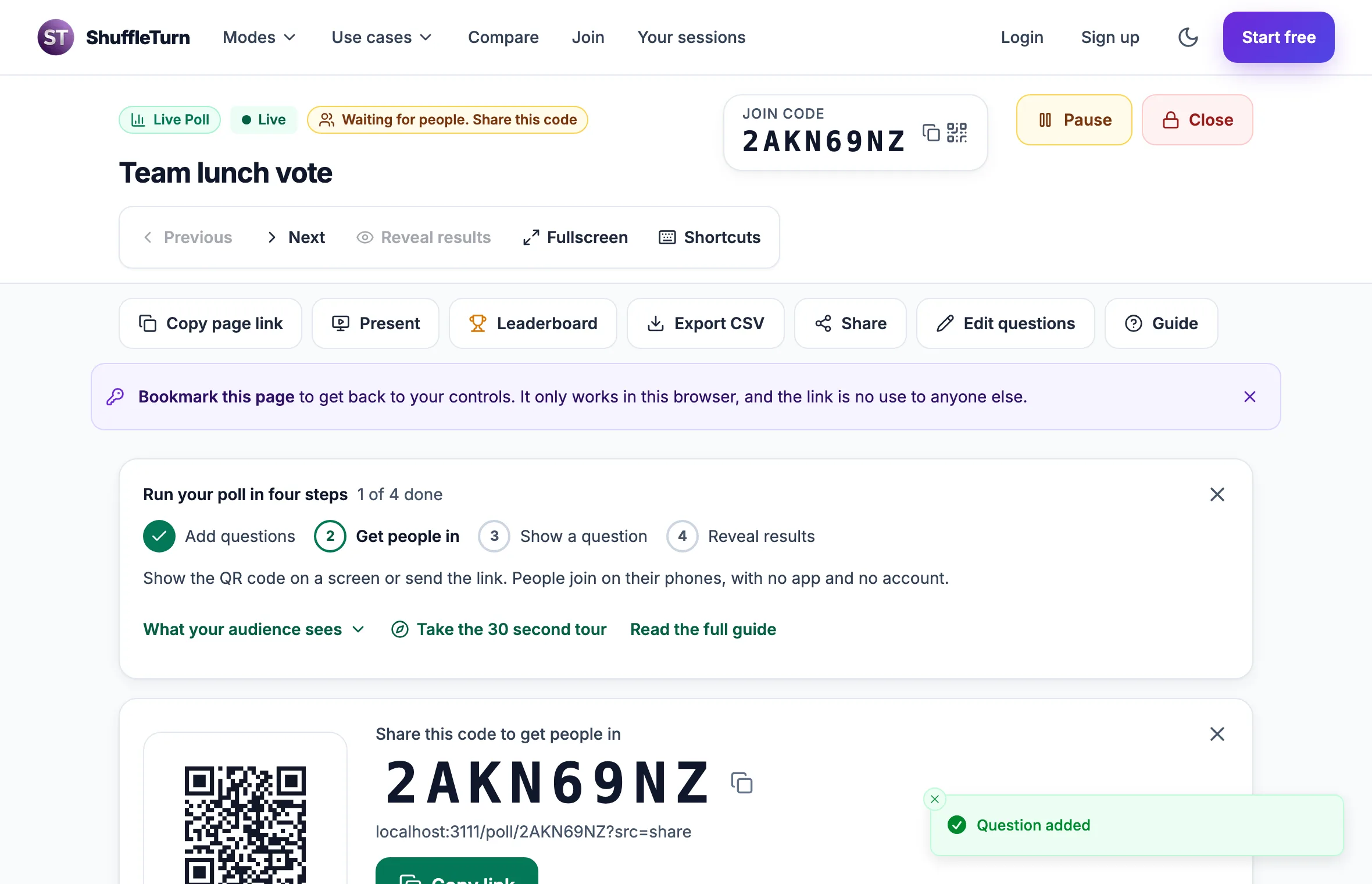
Your control room. The QR code and join code are the first thing you see. Show a question
Press Show on screen. The question opens on every phone and on the big screen at the same moment. People tap an answer, and can change it until you close the question.
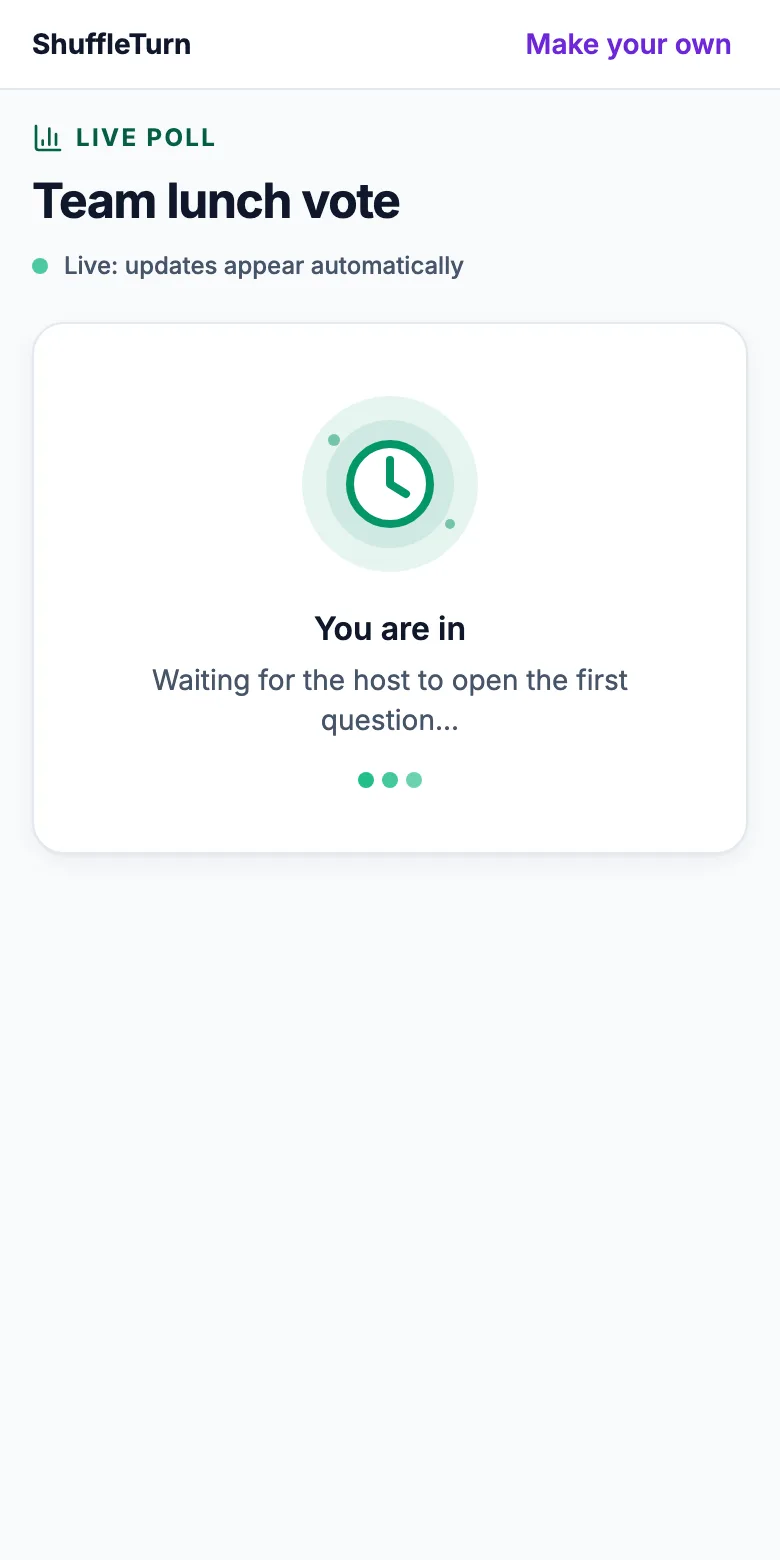
Before you start, they see that they are in. 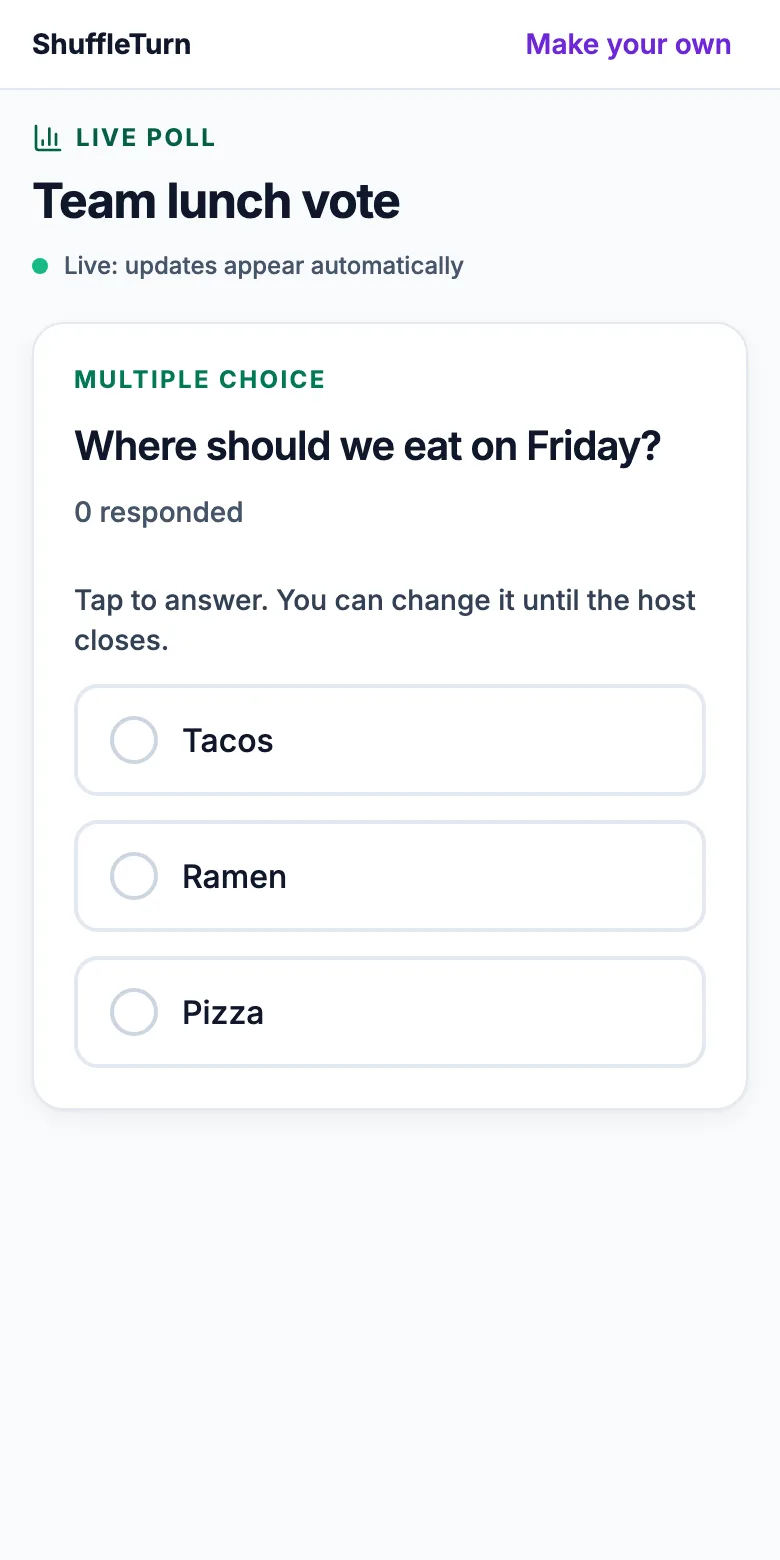
After Show on screen, the question appears. 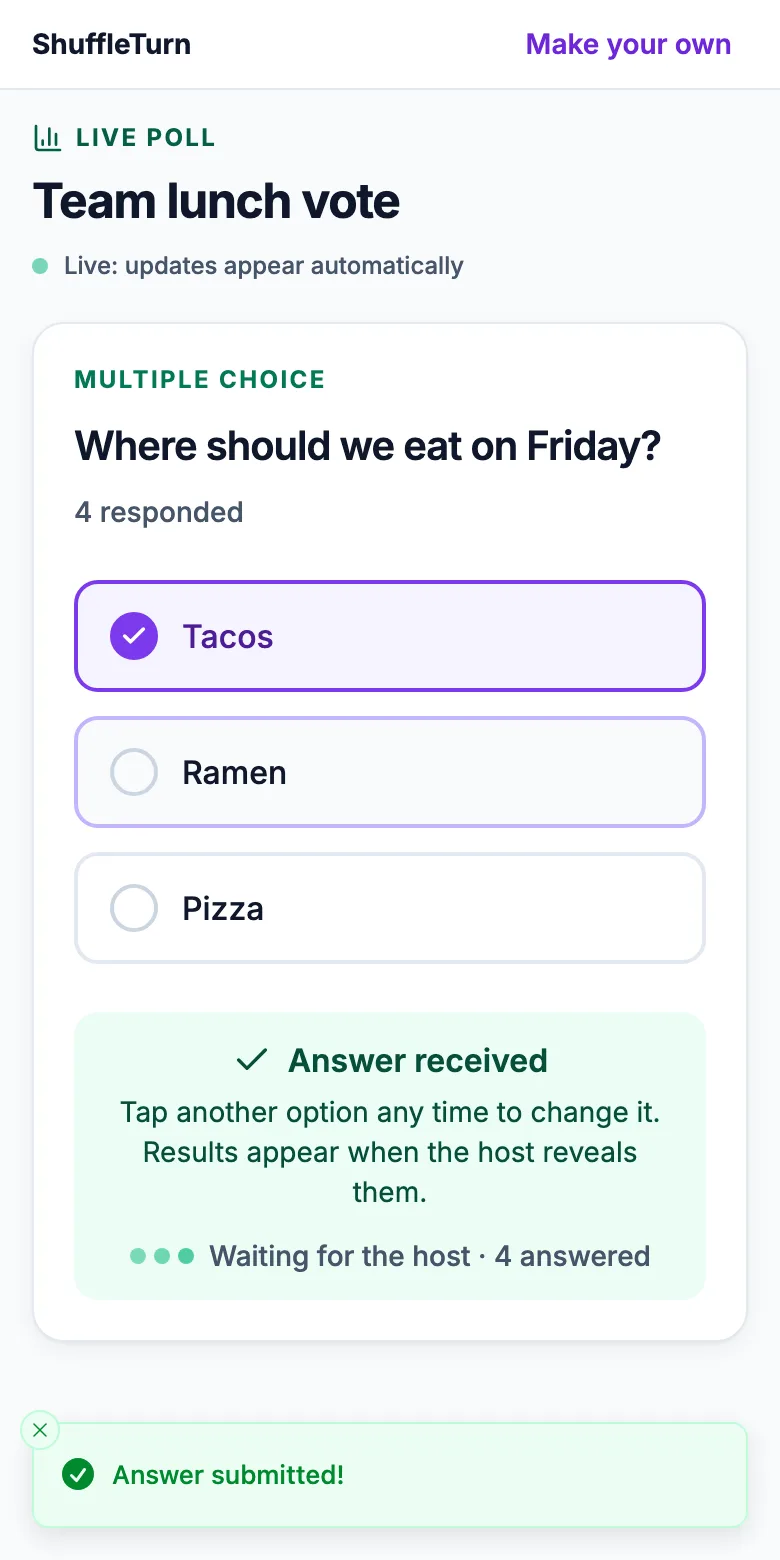
They get a confirmation when they answer. Reveal the results
Answers stay private to you until you press Reveal results. You can see a private preview first, which is handy for checking a word cloud. When you reveal, the bars appear on every phone and the big screen.
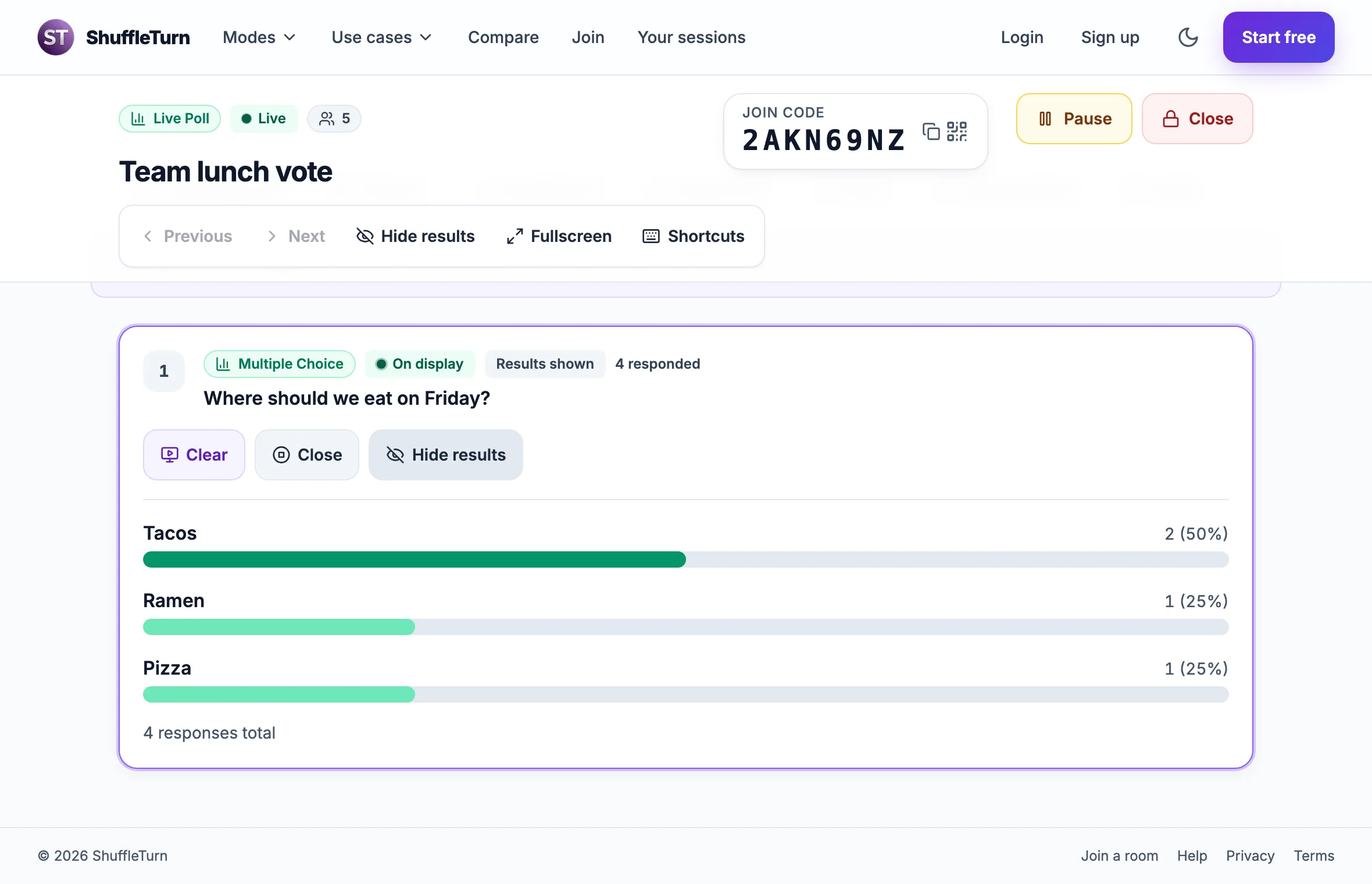
Your view after revealing. The bars update as answers arrive. 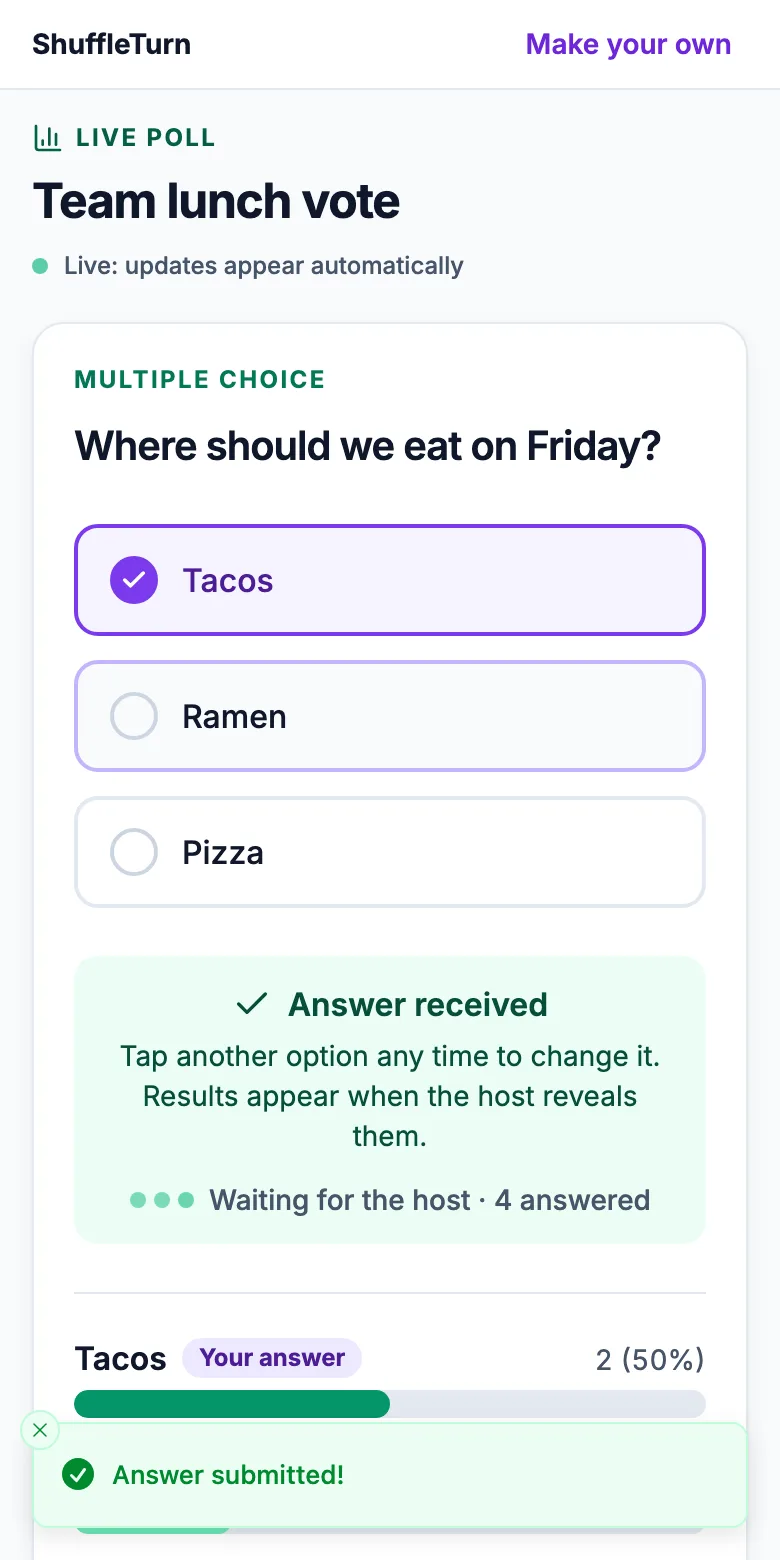
On their phone. 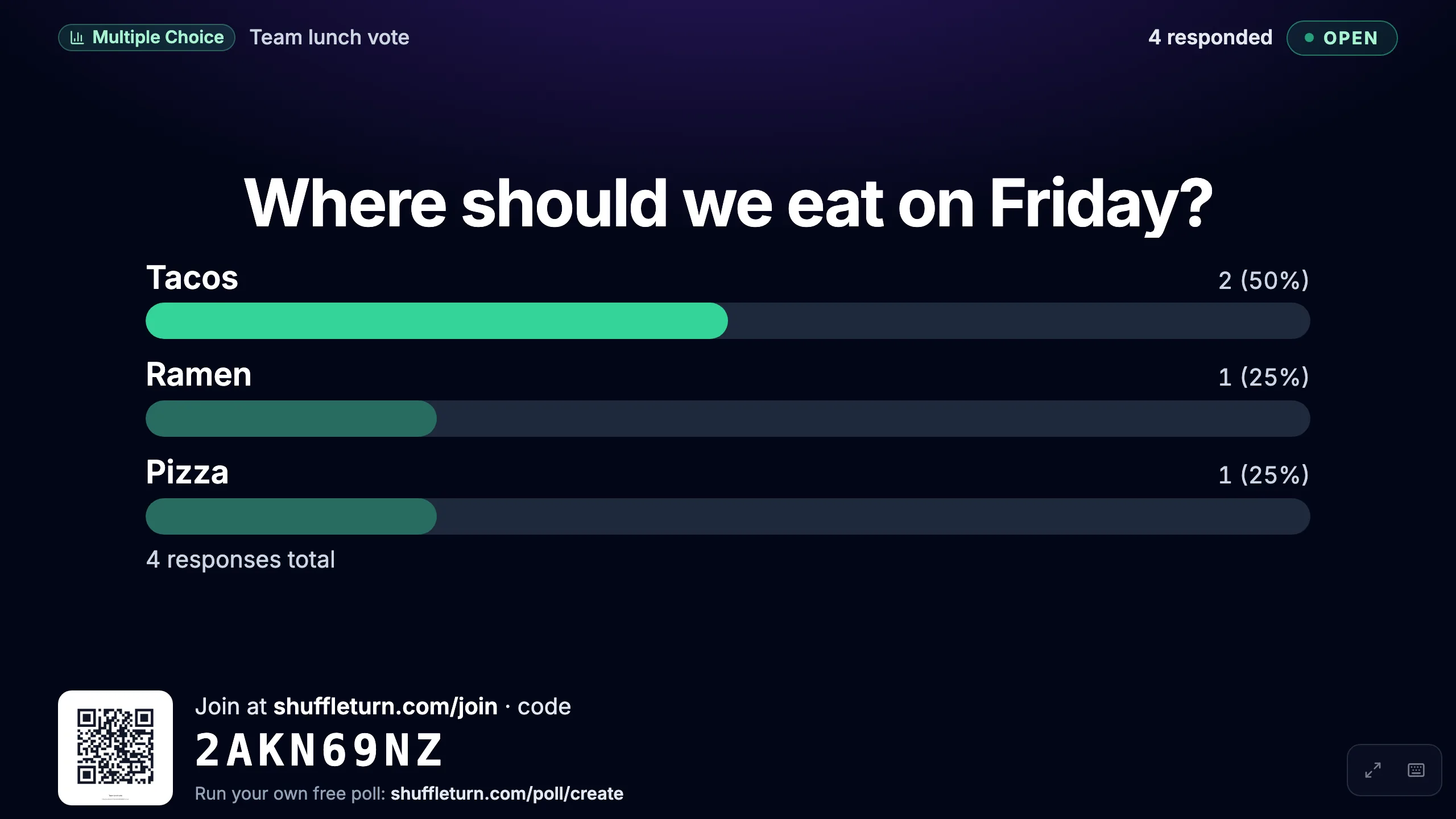
The big screen. Press Present in the console to open it on a projector or share it in a call.
Run a live Q&A
Create it in one step, then share the code. Questions arrive as people type them.
Create the session
Give it a title. Turn on review if you want to approve questions before the room sees them.
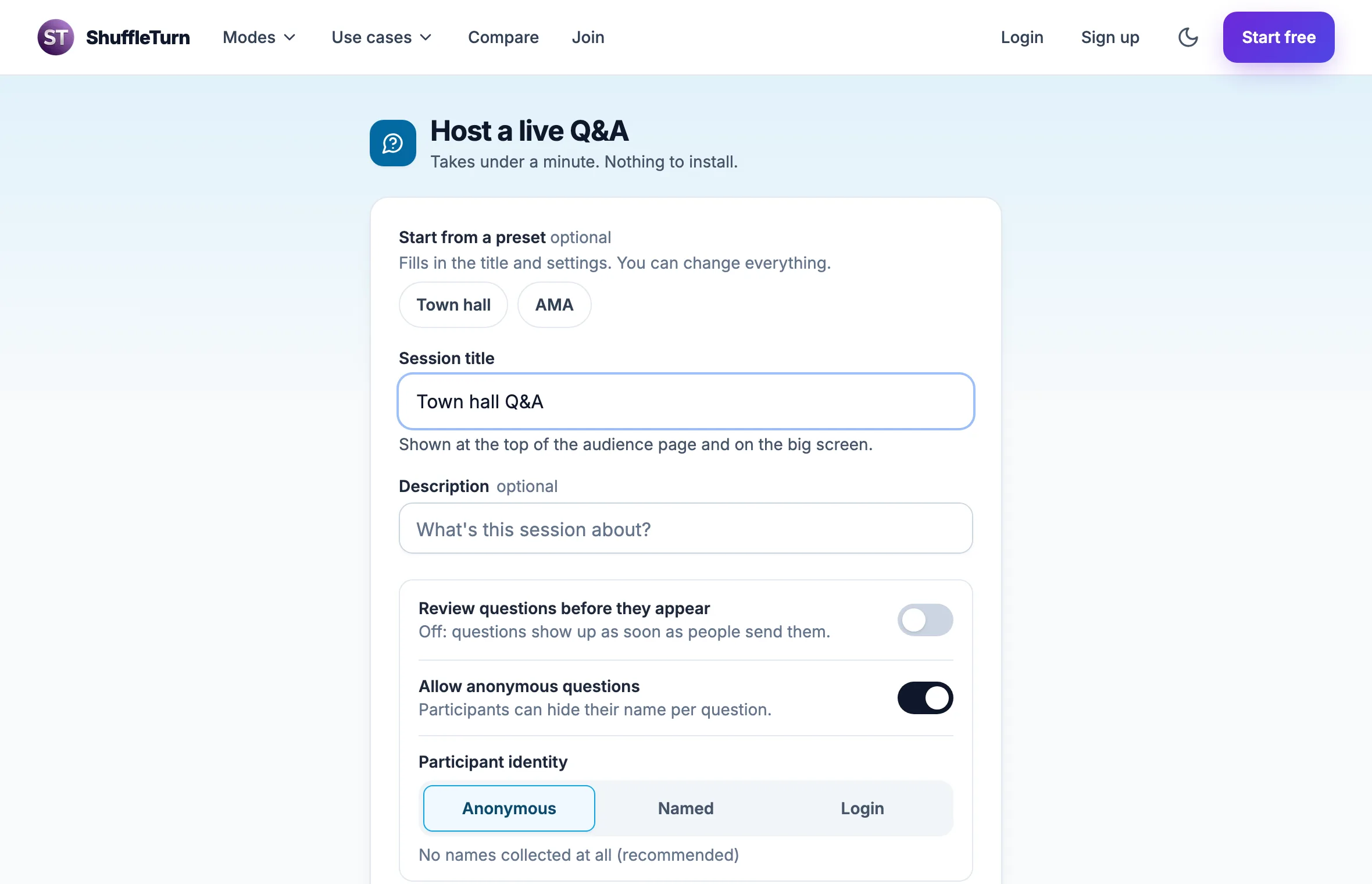
The create page. Review before questions appear is optional. Get people in
Show the QR code or send the link, the same as a poll.
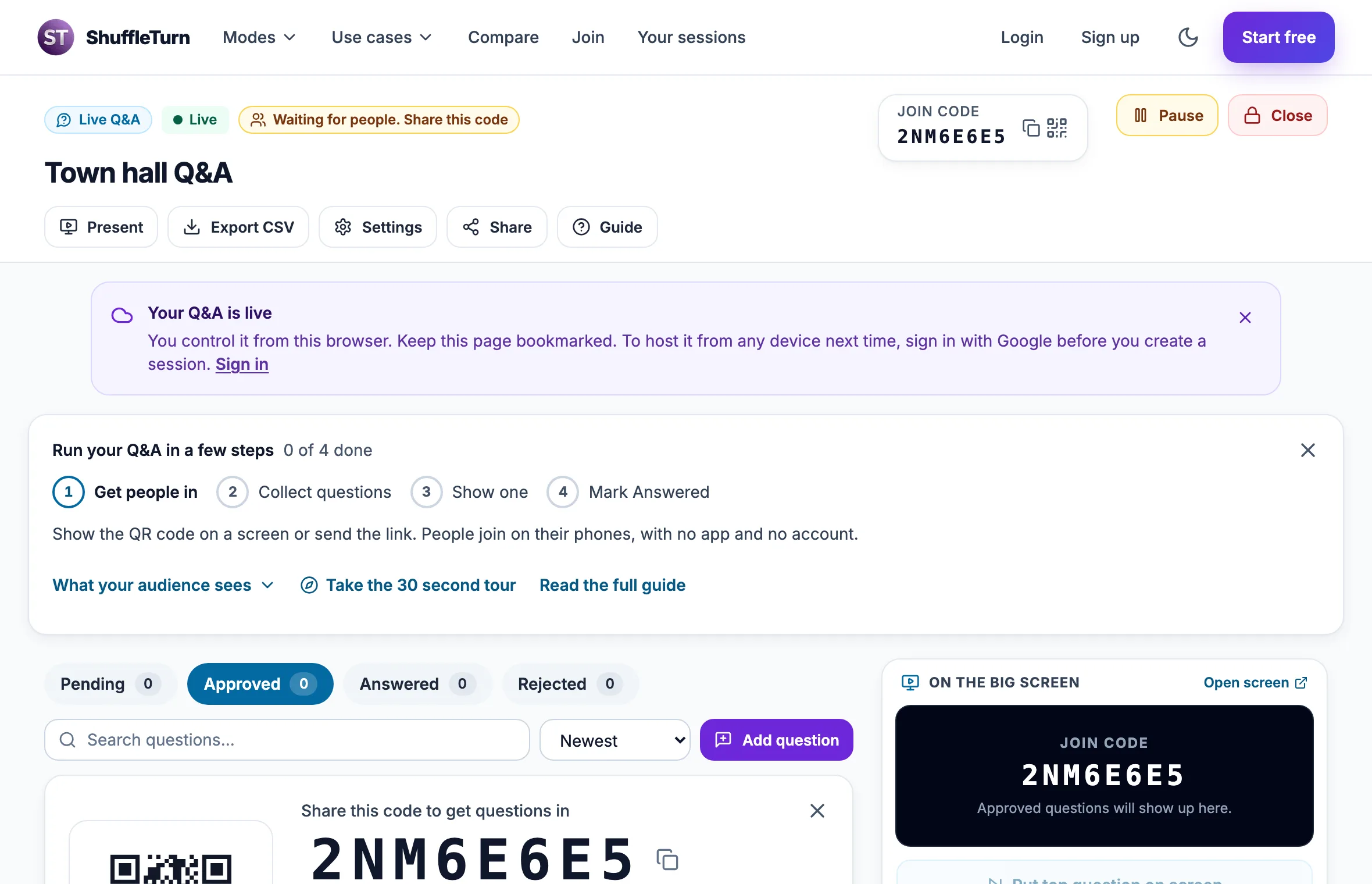
Your control room, with the share card until the first question arrives. Your audience asks and upvotes
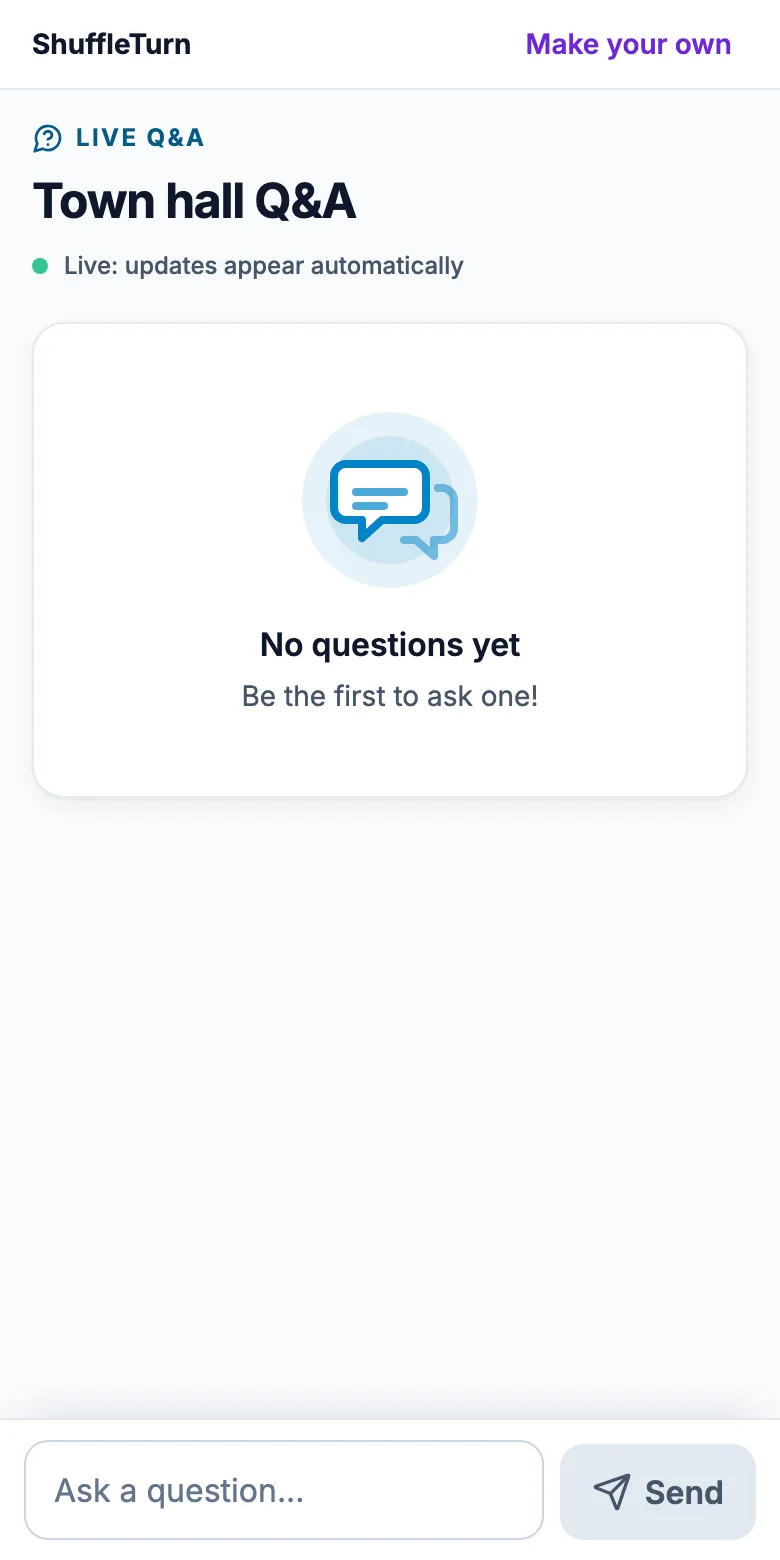
They type a question and press Send. 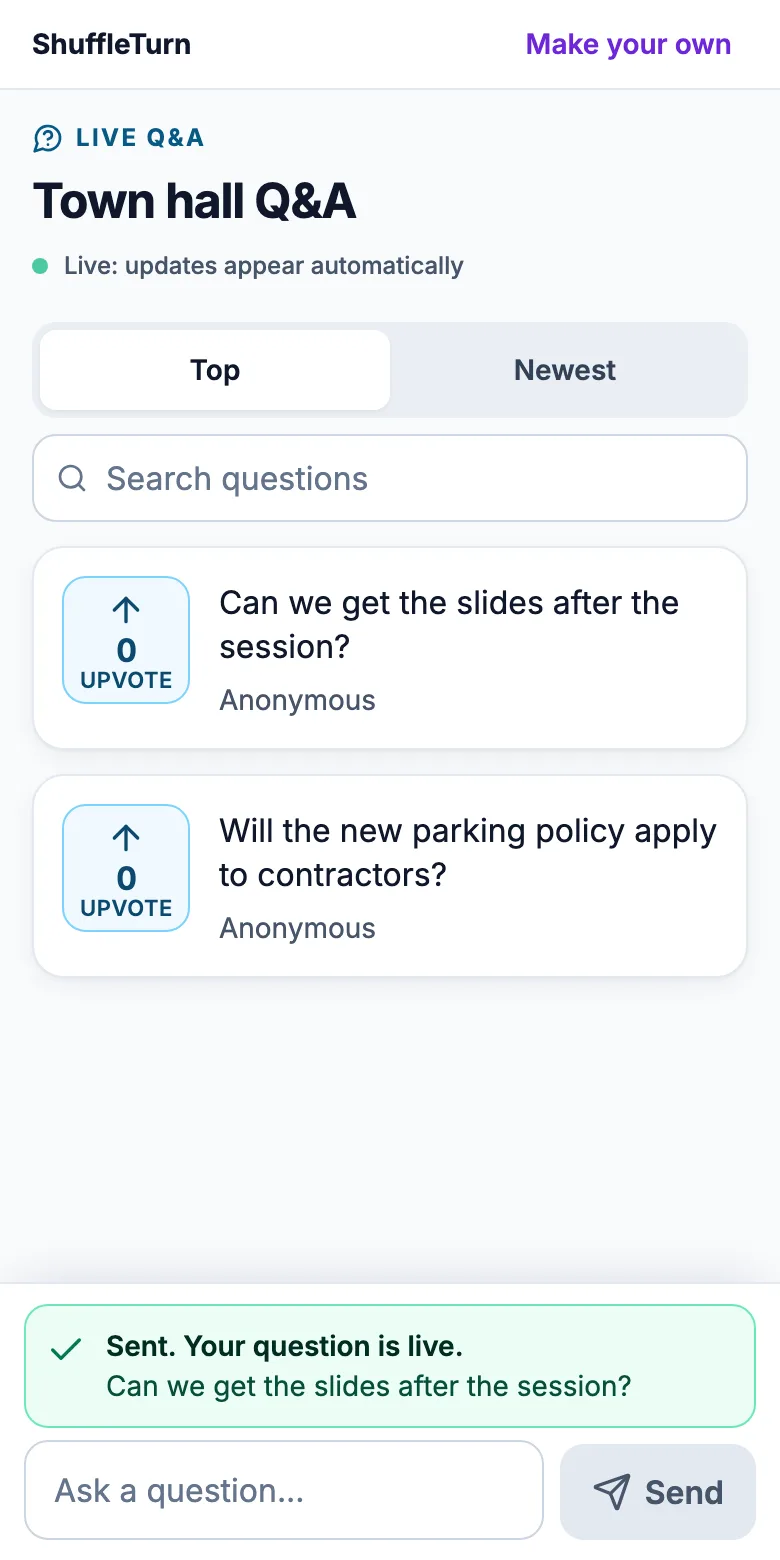
They see the list and upvote what they want answered. Approve, show and mark Answered
Questions land in Pending when review is on, otherwise in Approved. Press Show on screen to put one on the big screen. When you have dealt with it, press Answered. It moves to the Answered tab, so the room can see it is done and you keep a record.
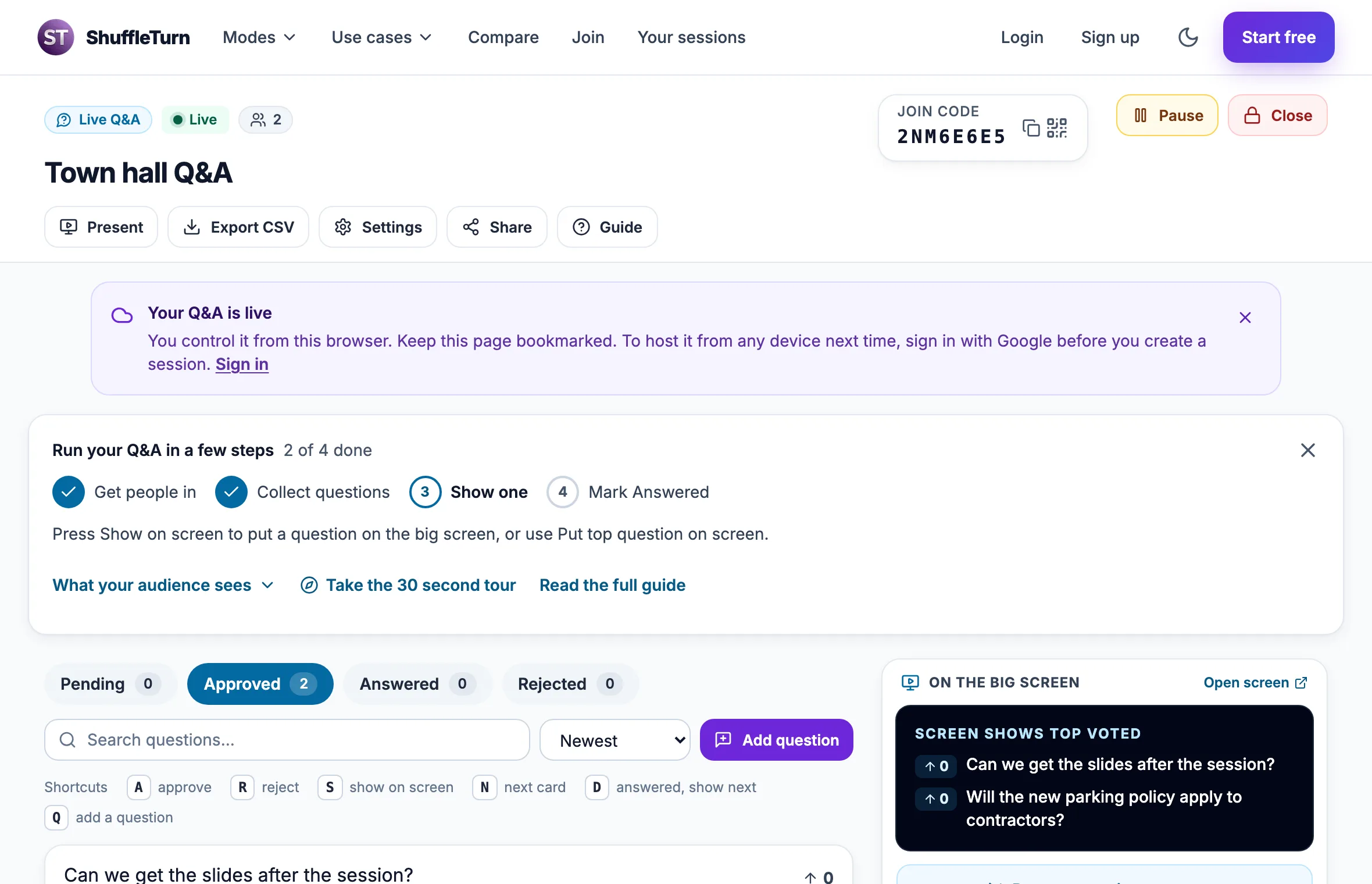
The four tabs and the actions on each question: Show on screen, Answered, Pin, Merge duplicate and Reject. 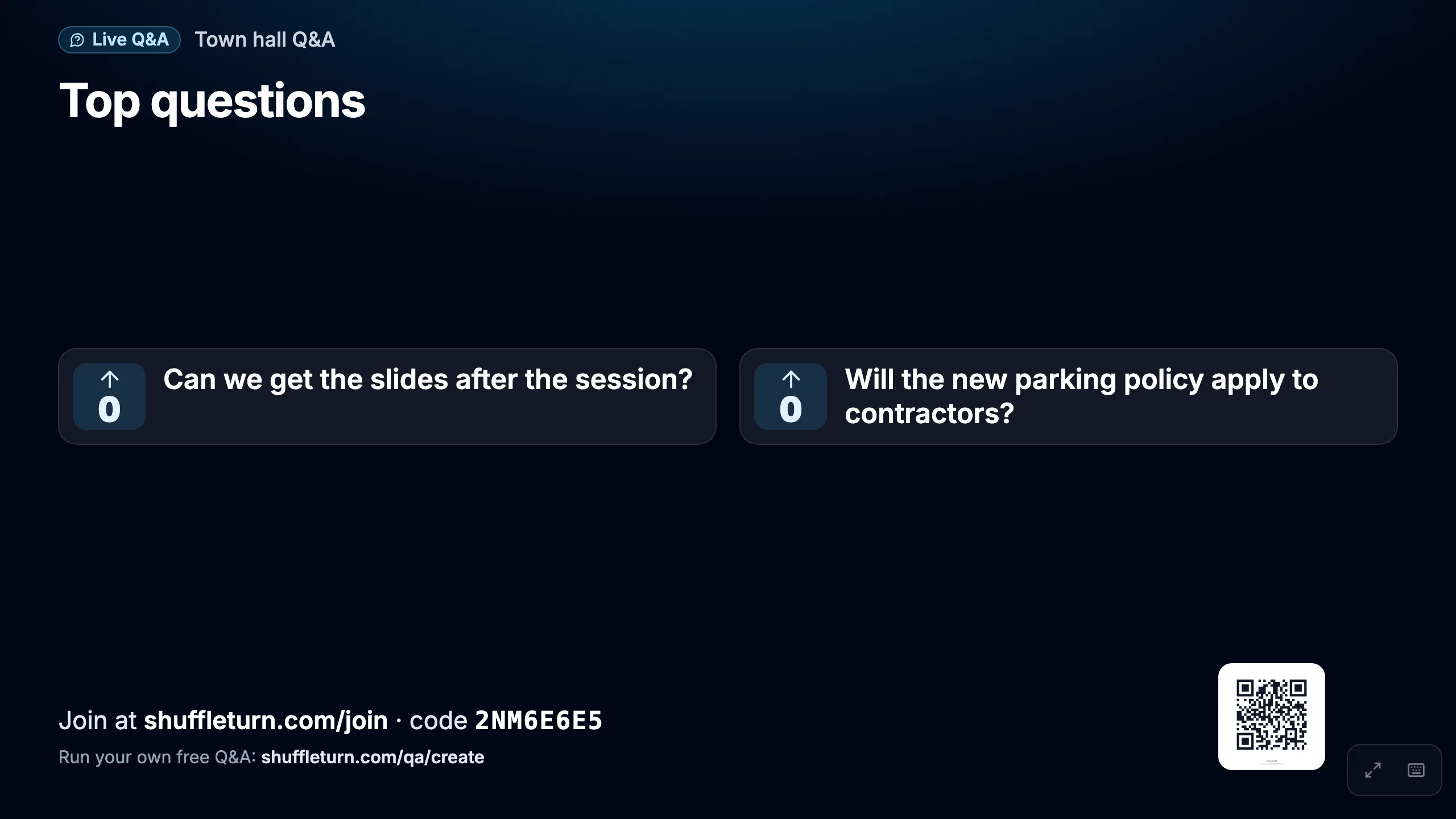
The big screen shows the question you picked, or the top voted one.
Common questions
- Do my participants need an account or an app?
- No. They open the link, scan the QR code, or type the code at shuffleturn.com/join in any phone browser.
- How do I get back to my controls?
- Bookmark the console page. If you created the session as a guest, the controls work in the same browser. Sign in before you create a session to host from any device, and find old sessions under Your sessions.
- Can people see results before I reveal them?
- No. Results stay private to you until you press Reveal results.
- Can I save the results?
- Yes. Use Export CSV in the console during or after the session.
- I took the tour and want it again.
- Press the Guide button in the console toolbar.